CS-Cart Avatax Add-On Configuration/User Guide
Avalara AvaTax is a cloud-based solution automating transaction tax calculations and the tax filing process. Avalara provides real-time tax calculation using tax content from more than 12,000 US taxing jurisdictions and over 200 countries, insuring your transaction tax is calculated based on the most current tax rules.
Obtaining and installing the add-on
Our add-on can be purchased from the CS-Cart marketplace under Avalara Avatax Integration.
We recommend following one of the many guides for installing CS-Cart addons such as How to Install New CS-Cart Addons and How To: Install and Upgrade Add-ons from the Marketplace
Configuring the add-on
View the add-on
After installation you should see the Avatax addon listed in the add-ons section of the admin interface

Start configuration
Start configuration by clicking on the add-on and then the "Settings" tab
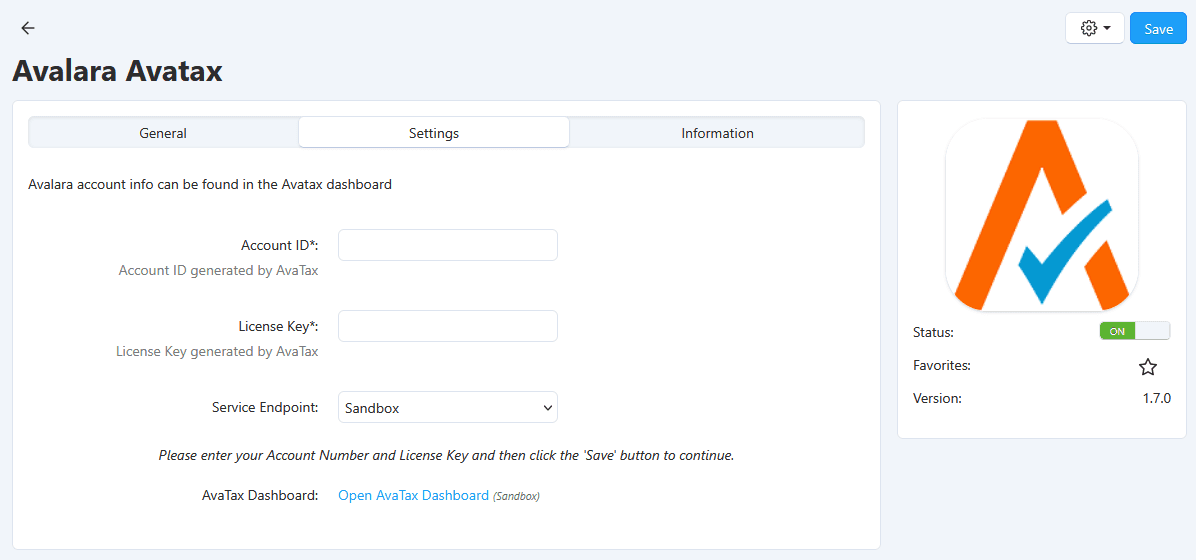
Enter primary details
Enter your account ID and license key, then click the "Save" button to reveal the next options
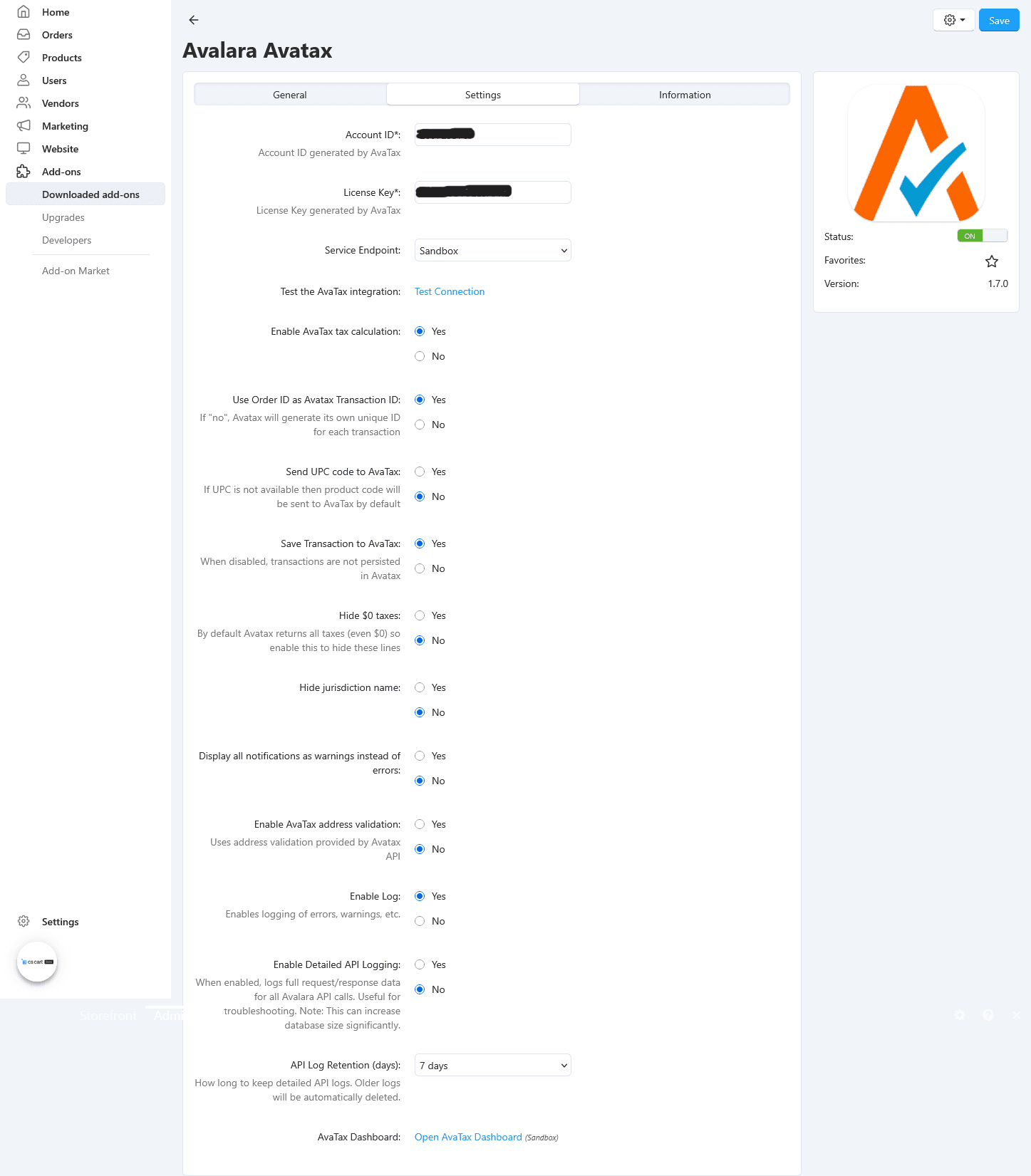
Test the connection
Once your ID and key are saved, click "Test connection" to ensure you can successfully connect to the Avatax endpoint
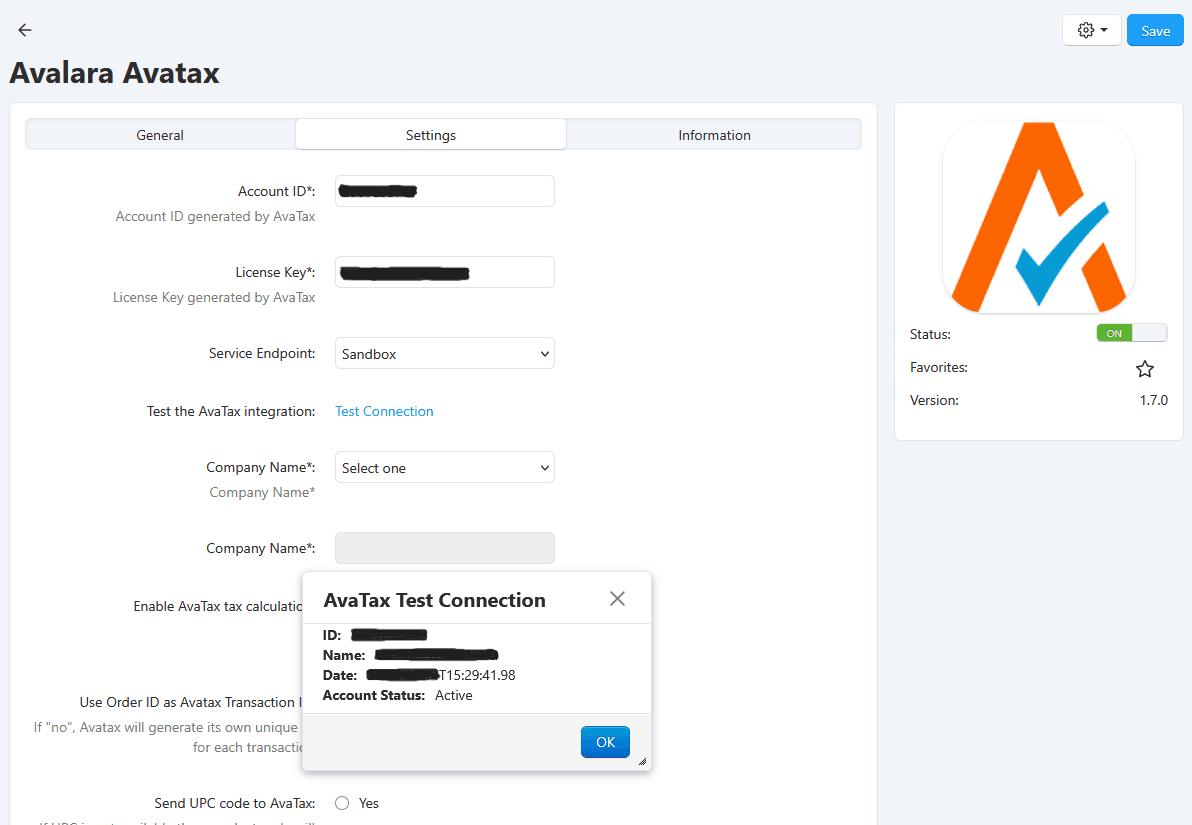
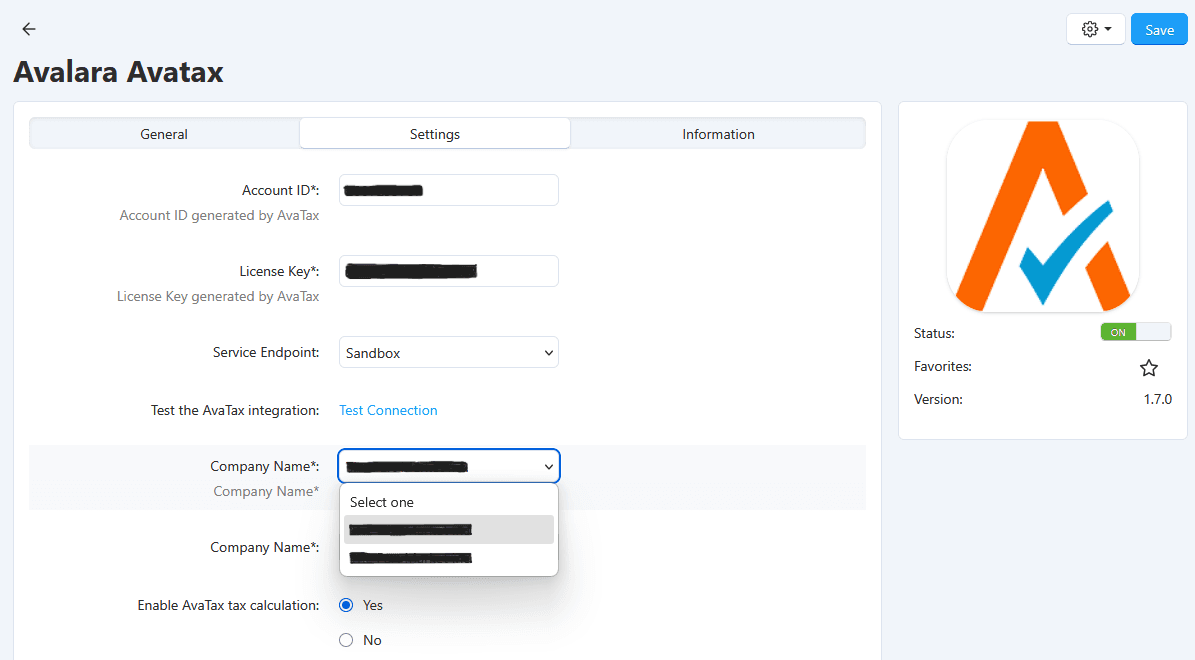
Select the company
Select your company from the list returned by Avatax
Save your preferences
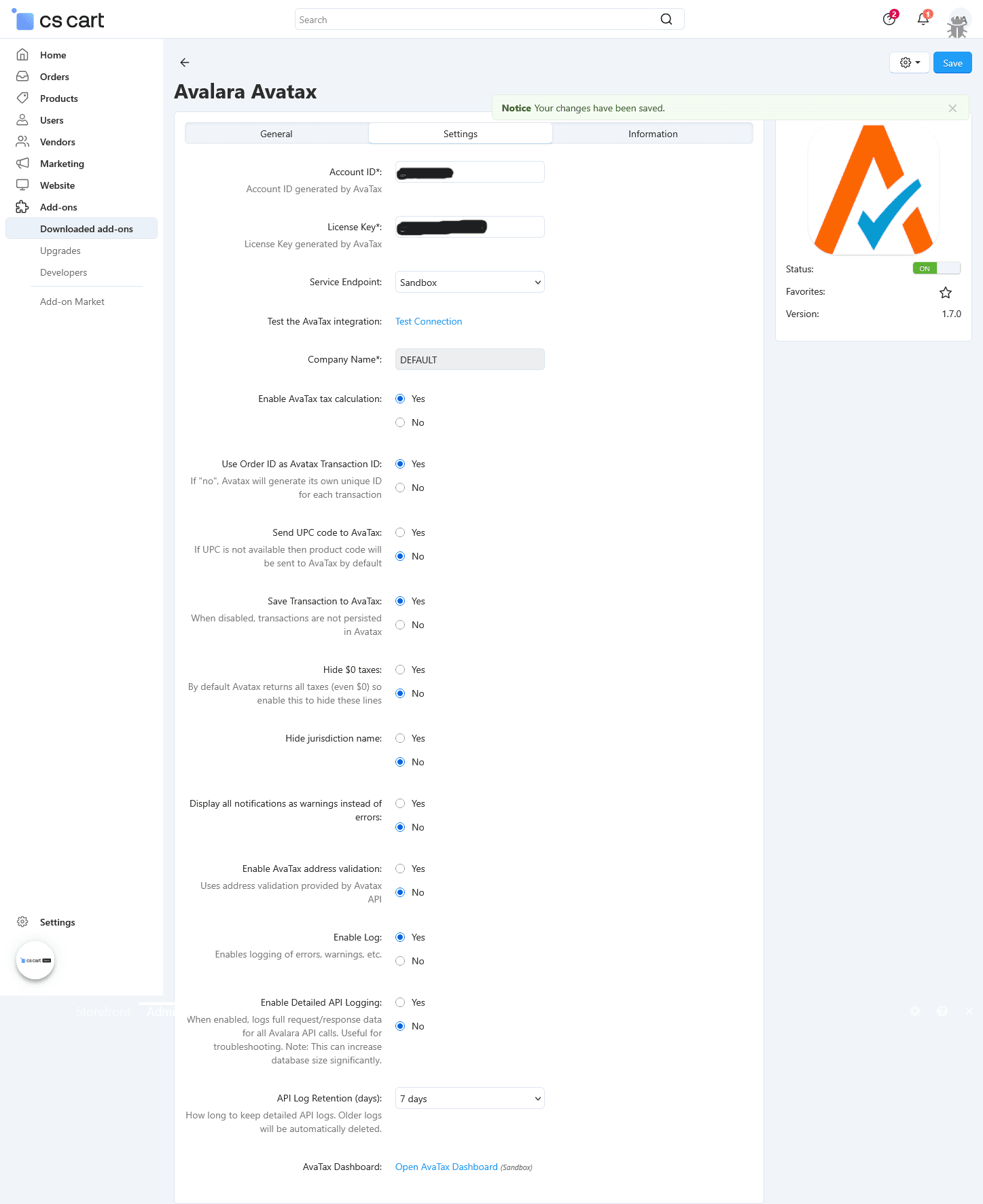
Save your selection, along with any other settings you wish to change
Setting tax codes
You can set a tax code on an individual product or its category, as well as shipping. Tax codes for a product are inherited from any category or parent category on which a tax code is set.
Set codes on category / product / promotion / shipping
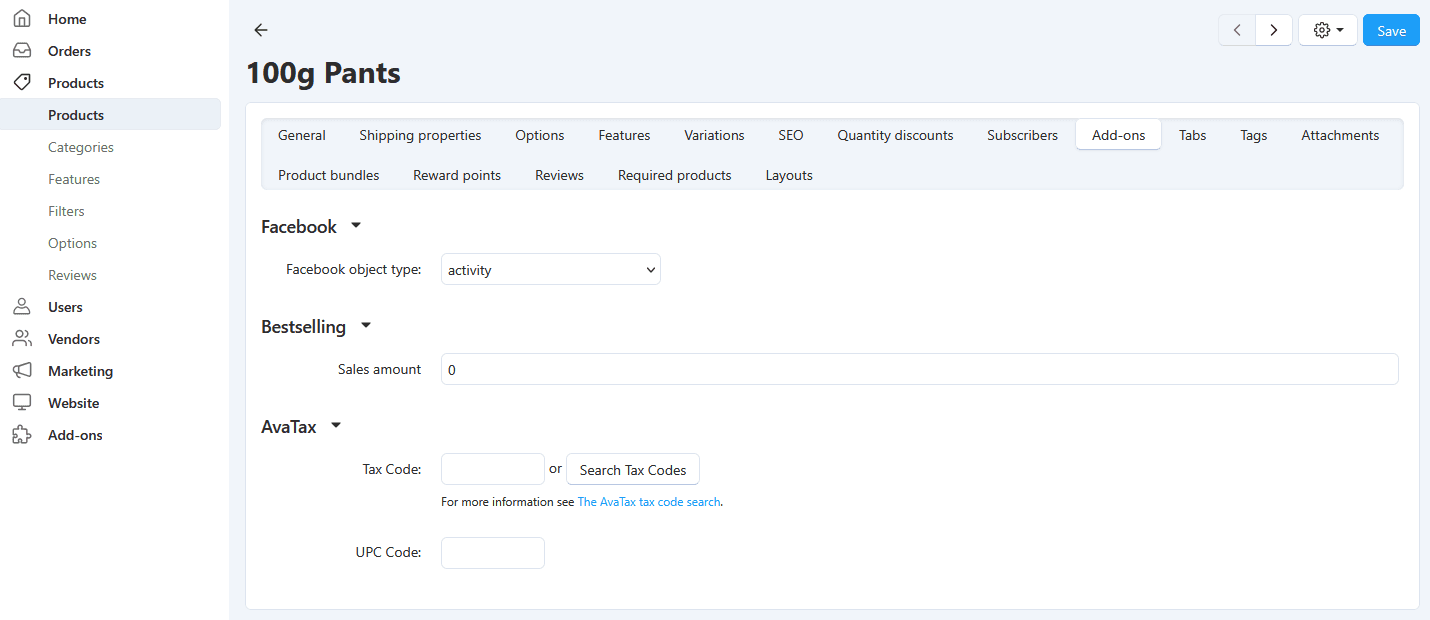
The field for tax code can be found under any category, under the "Add-ons" tab
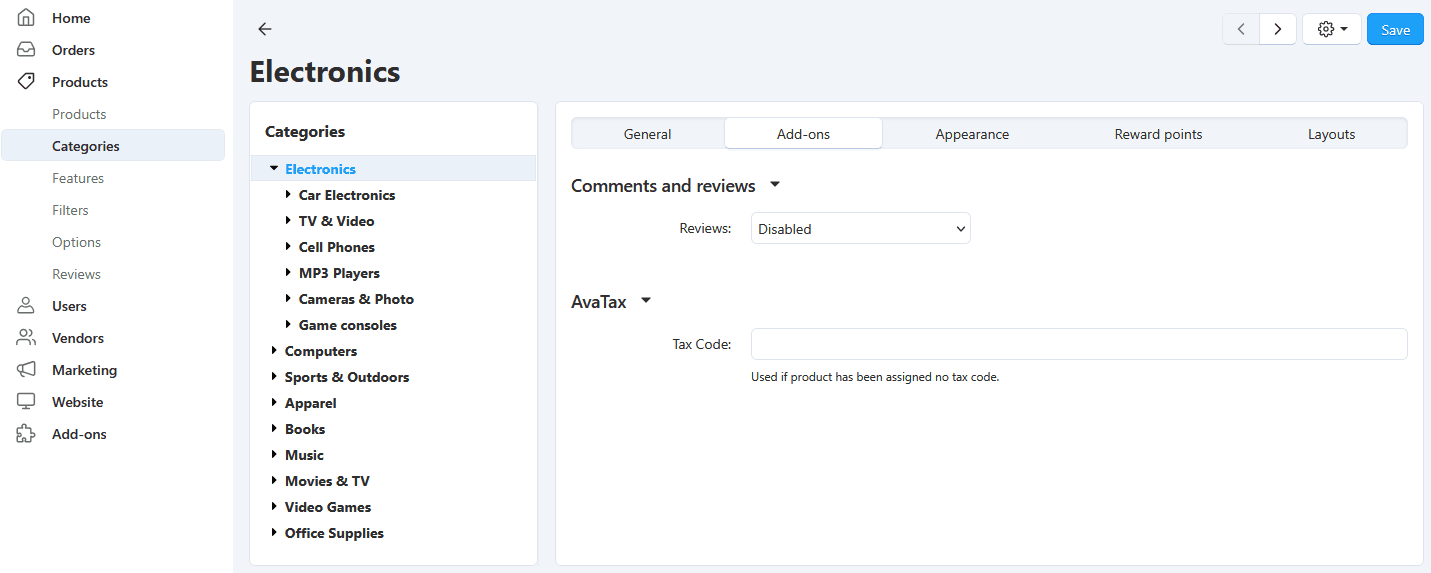
The field for tax code can be found under every product, under the "Add-ons" tab
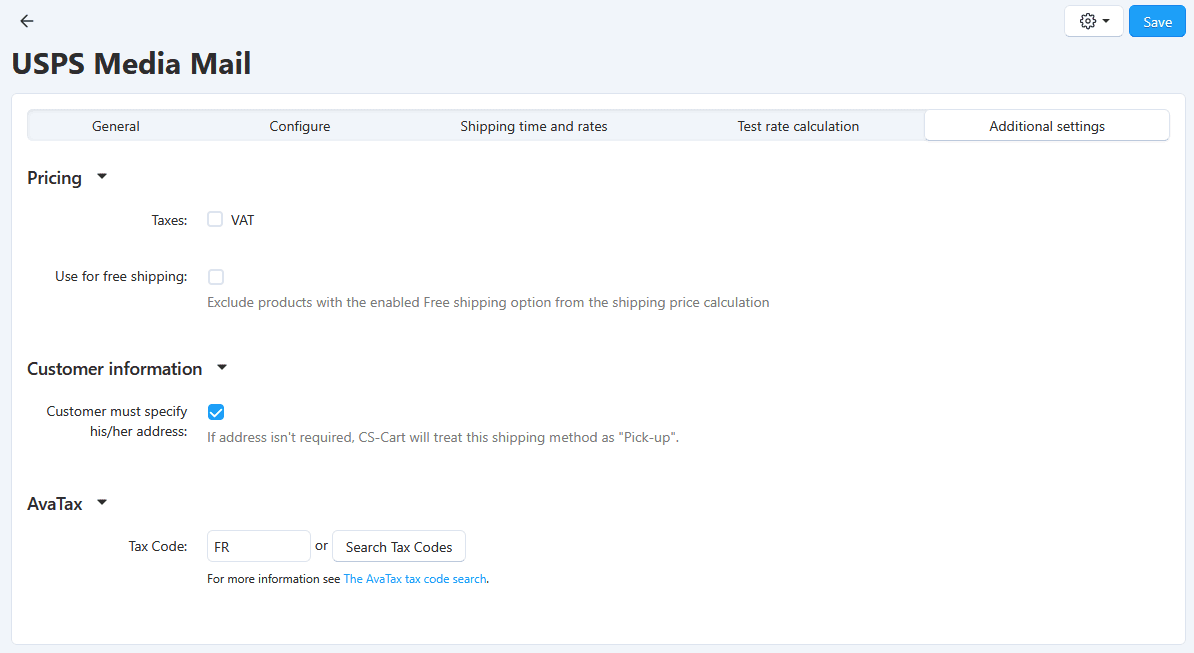
The field for tax code can be found under every shipping option, under the "Additional settings" tab
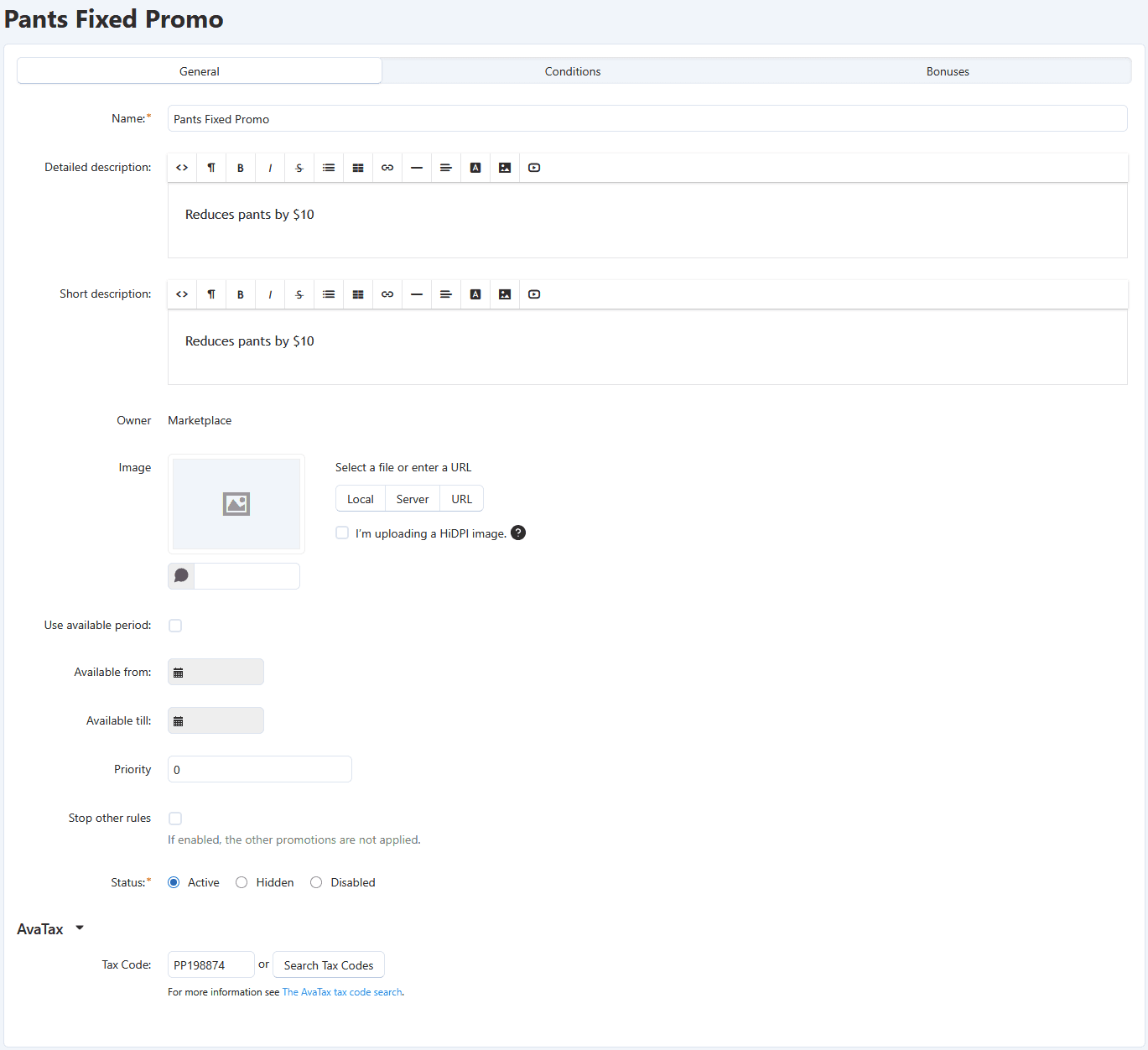
The field for tax code can be found under every promotion, under the "Avatax" sub-heading
Searching for tax codes
The Avalara Tax Codes search is the best way to search for tax codes, however for ease-of-use we have included a tax code search in the add-on. This should appear beside relevant input fields, and pulls the same information from Avalara.
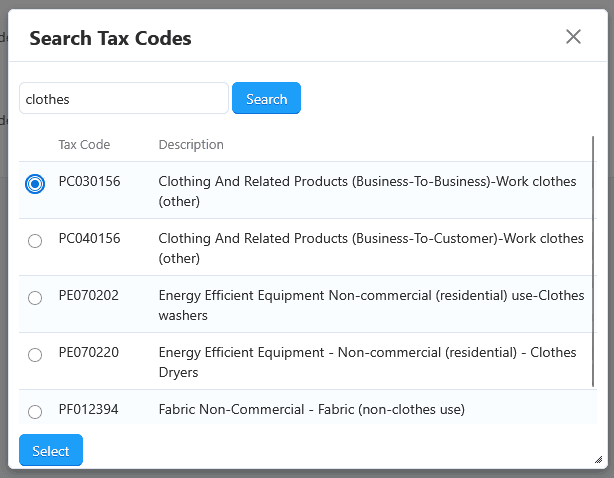
Clicking on the search button pops up a modal dialog with search input field
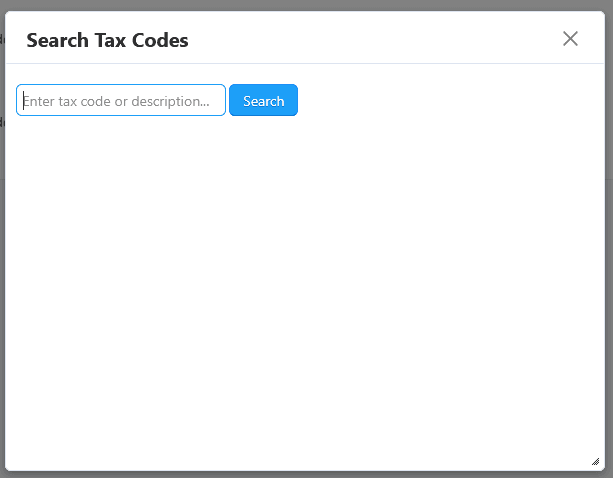
Enter a search term and hit enter or click the 'Search' button
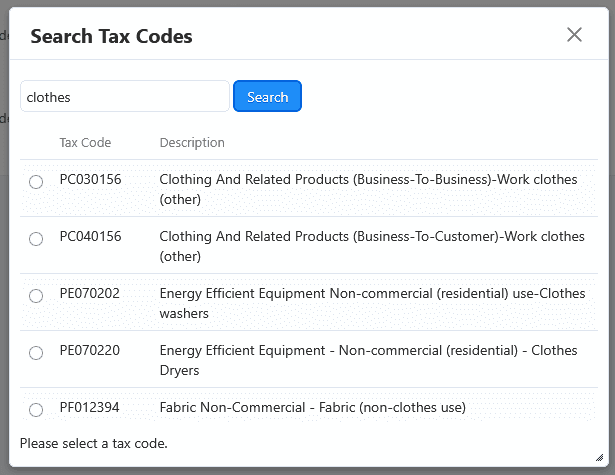
Select the relevant tax code from the results
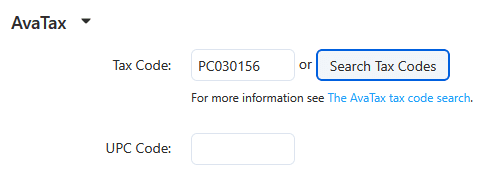
You will find the tax code populated in the relevant input field
Verifying the add-on works
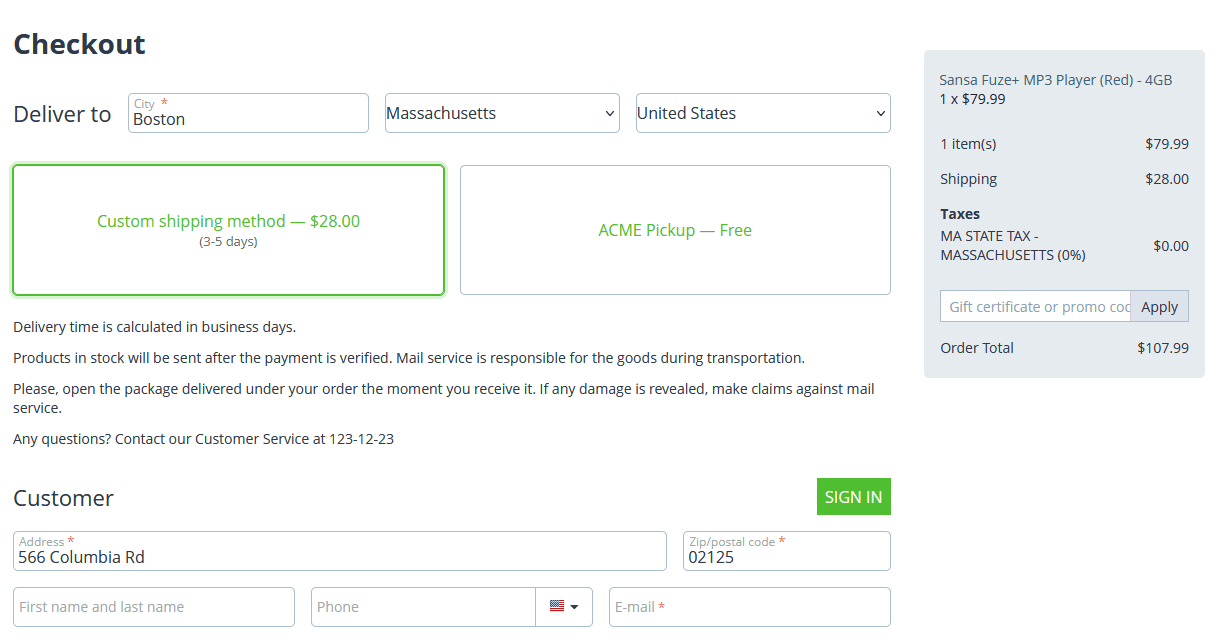
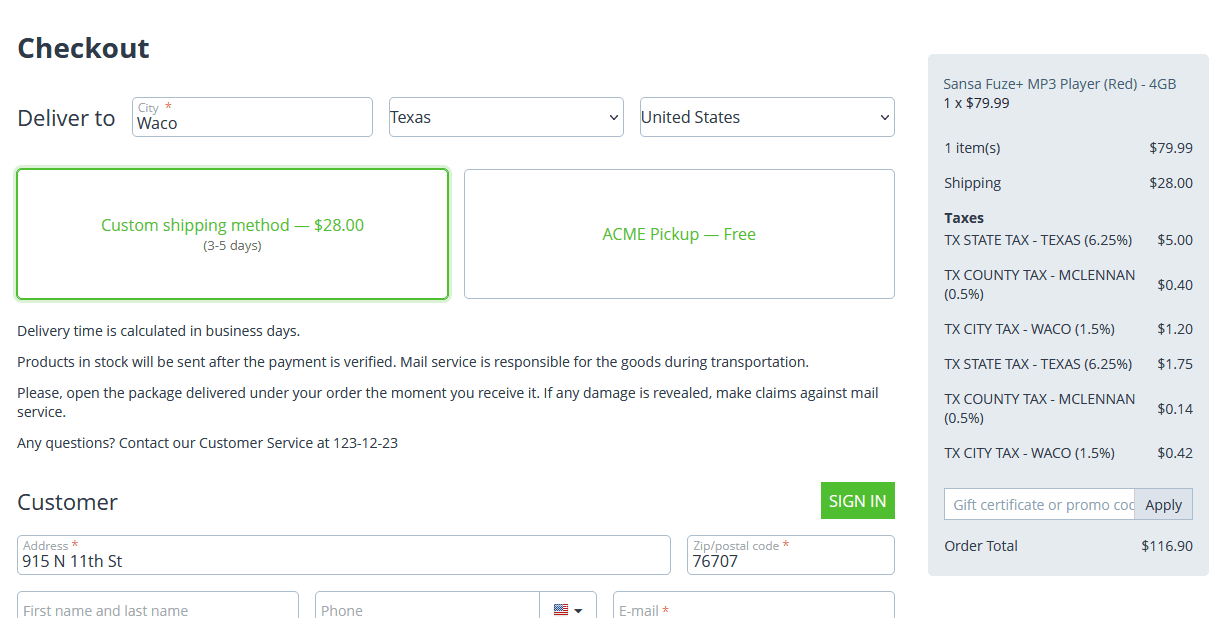
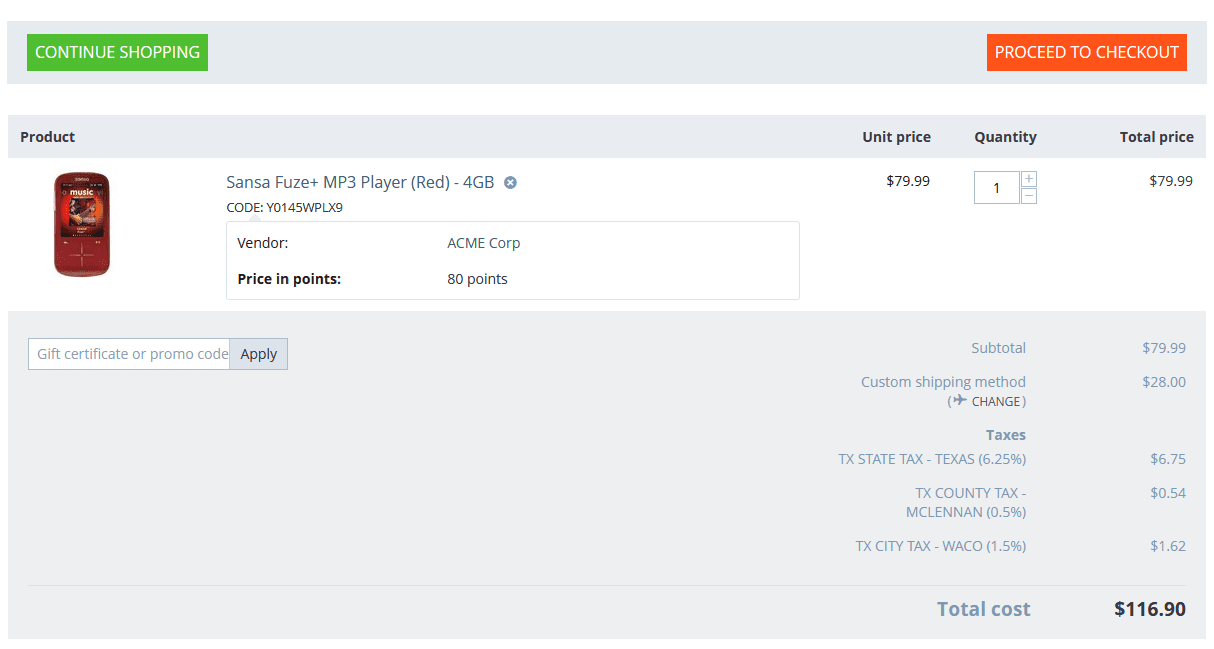
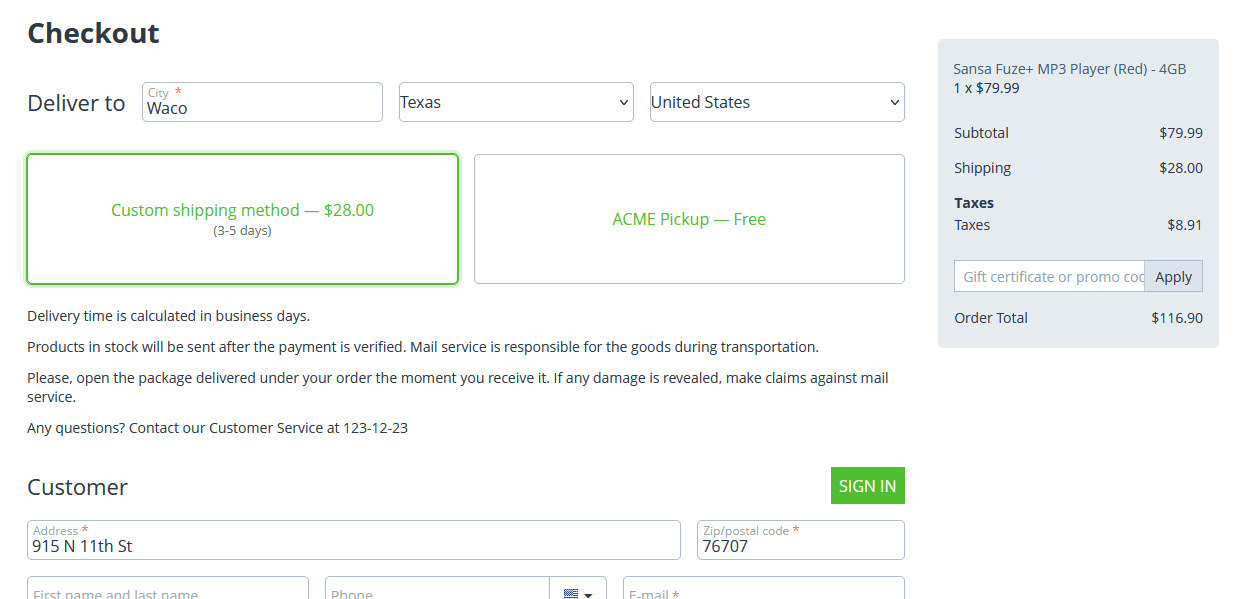
Once you have tested your connection with Avatax and saved your company, ensure your vendor has an address set, and add a product to the cart. Navigate to the cart or checkout page and enter a shipping address. If the address you enter is in a state for which a tax is required, you will see it appear under "taxes".
Checkout
Cart
Set your address on the cart page, if it is not already
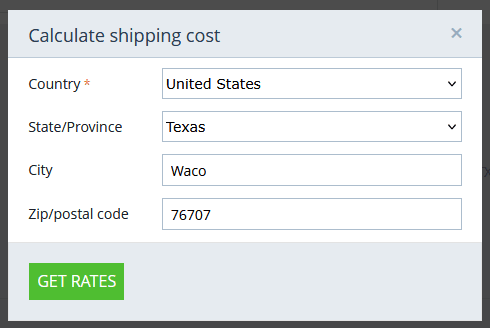
Once address is set you should see taxes
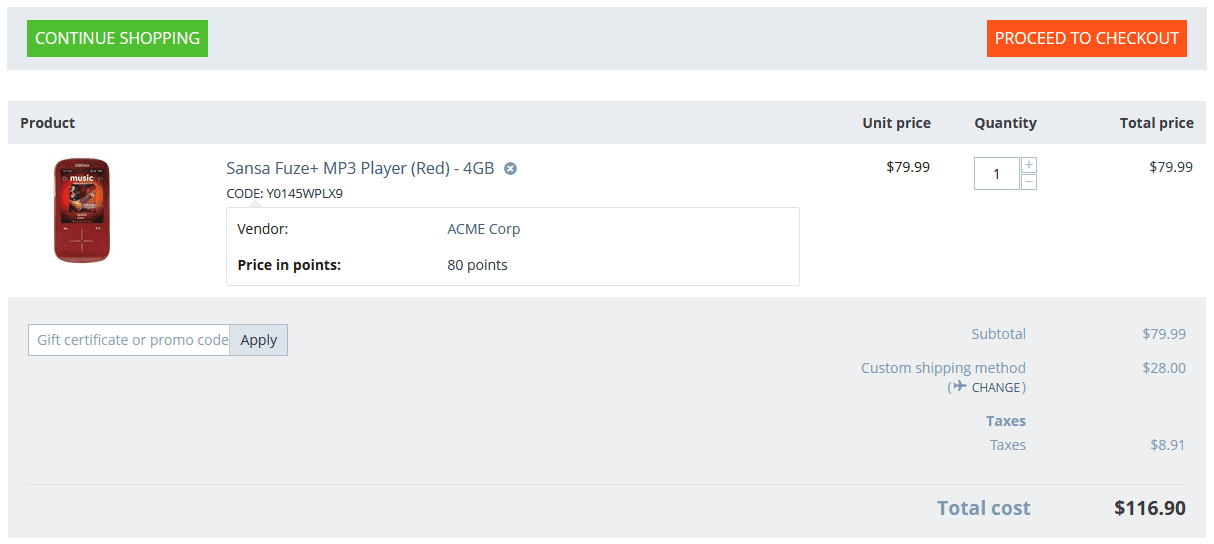
Grouping taxes to a single line
Most e-commerce sites do not list out each and every tax, as our add-on does by default (since we display exactly what we get from Avatax). Unfortunately at this time there is no universal way for us to display grouped taxes across all themes, included with the add-on.
HOWEVER we do have a solution! Contact us and we will provide 2 tpl files (cart + checkout) we have developed (based on the responsive theme), which you can use to group taxes in your custom theme. We will share the full source code for these files, which you can use as-provided or tailor to your own business requirements.
Cart and Checkout page previews
Order/Transaction Status mapping
When your order status changes in CS-Cart it is set to update your transaction status in Avatax, with certain defaults. This is customizable under Settings > Statuses > each status, under the field Avatax Transaction Status.
The default mappings are:
- Open / Paid / Backordered / Awaiting call → Uncommitted
- Complete → Committed
- Failed / Declined / Cancelled → Voided
Note: once a transaction has been voided or refunded in Avatax there is no further option to change its status (via this add-on), even if you are still able to change it in the CS-Cart admin interface.
Valid transaction status changes in Avatax are:
- Uncommitted → Committed
- Uncommitted → Voided
- Committed → Voided
Downloadable Products
If you have downloadable products, you may wish to override the default tax code - across the entire marketplace - for all downloadable products. This will apply to downloadable products which do not already have a tax code set on the product or category level.
Set a default tax code for all downloadable products
You can do this in the Avatax add-on settings, using the field "Override tax code for all digital downloads".

RMAs / Refunds addon support
RMA/refund support is included, when the CS-Cart RMA add-on is installed and enabled. Both partial (eg. 1 of 2 purchased products from an order) and full refunds (all products from an order) are supported.
Like order status mapping is used to set the Avatax transaction when an order status is changed, the same can be done when the order / RMA status is changed through the RMA process. This is customizable under Settings > Statuses > RMA Request Statuses > each status, under the field Avatax Transaction Status.
Note: once a transaction has been refunded in Avatax there is no further option to change its status, even if you are still able to change it in the CS-Cart admin interface.
Stores & Pickup addon support
The CS-Cart Stores and Pickup Points add-on is supported.
When a visitor selects to pick up a product from a pickup point, for tax calculation purposes both the source and destination address are set as the store's address.
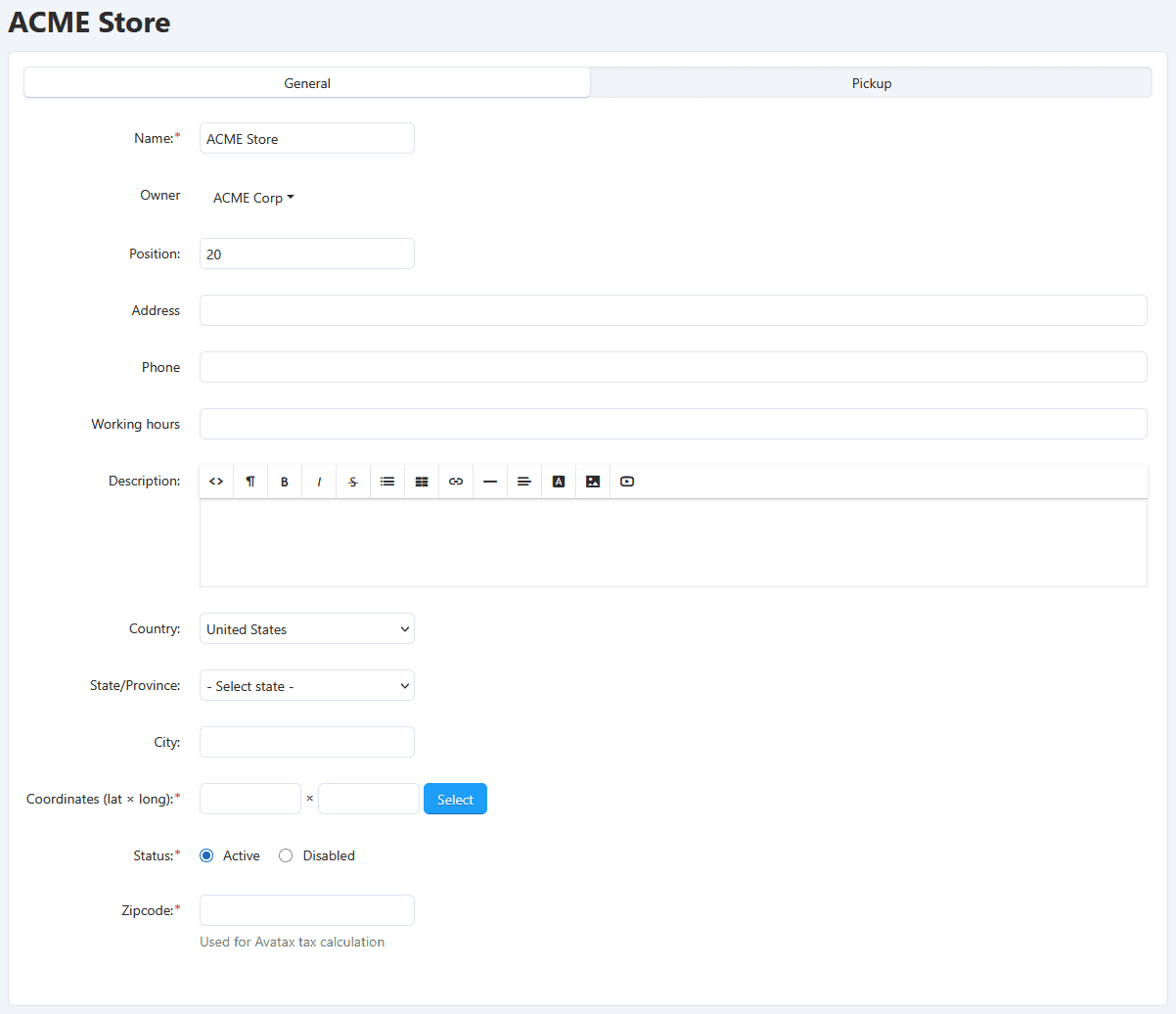
The mandatory store zipcode field
In order to support the requirement of setting the store address as source and destination, the Avatax add-on adds a new field for zipcode to the store info screen. This is a required field used for the addresses sent to Avatax.
Gift Certificates addon support
Gift cards of any specific dollar amount are not taxed. You can read more about why gift cards should not be taxed on the Avalara article Should I tax customers for gift cards?.
Vendor to Admin Payments (Marketplace Fees) addon support
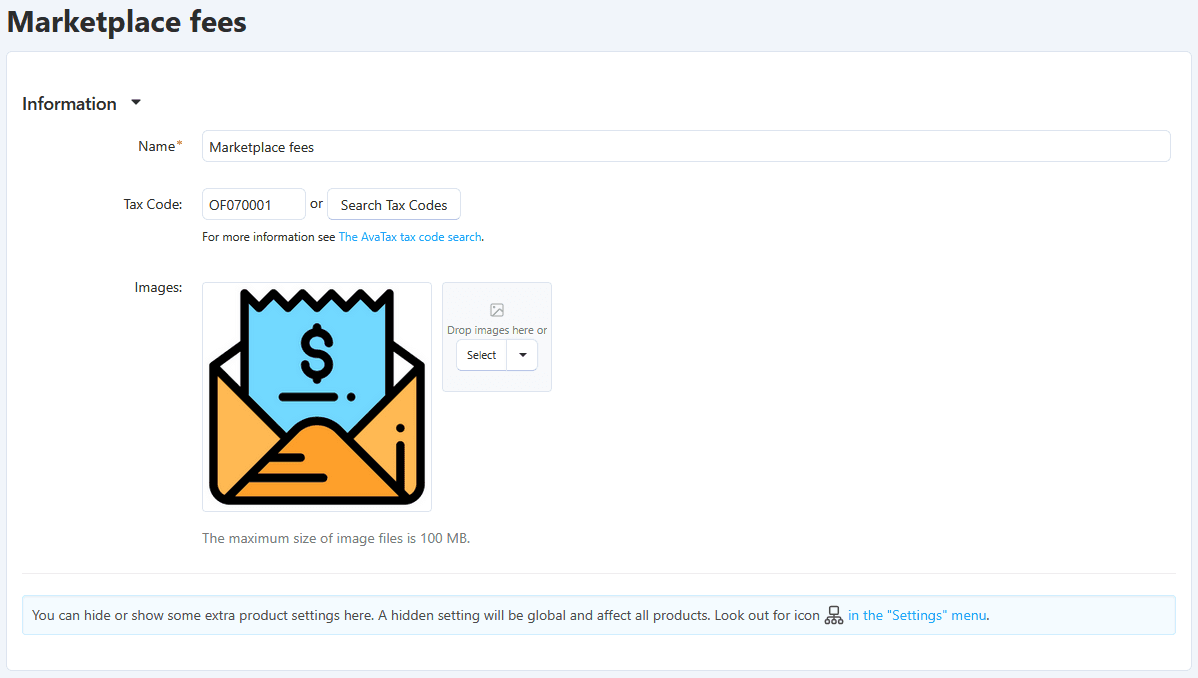
If you have the CS-Cart Vendor-to-Admin Payments add-on installed and enabled, you will see a product called "Marketplace Fees" (default ID 285). The Avatax add-on supports adding a custom tax code to this product so that you can ensure your marketplace fees are taxed correctly for your business. We always recommend speaking with your Avalara representative regarding the correct tax codes to use.